Instructions for configuring two-factor authentication for the account @365.sum.edu.pl
If you have any problems configuring the service, please contact us at: domena@sum.edu.pl
Open the website https://www.office.com
To log in, enter your username and password (xxxxxxx@365.sum.edu.pl)
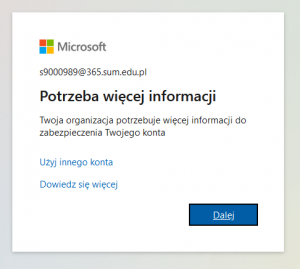
The next window will say „More information needed” select „Next”
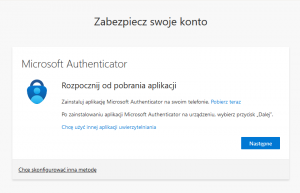
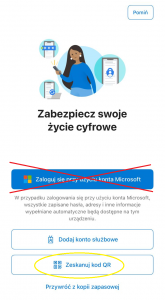
You will be asked to install the ’Microsoft Authenticator’ application. We perform it in the PHONE. We locate the „Microsoft Authenticator” app in the Play or App Store. – we perform the installation, then make the first launch and give the necessary consents. Select ’Scan QR code’ or, if this option is not available, 'Add business account’ and then ’Scan QR code’ (do not enter the account login and password).
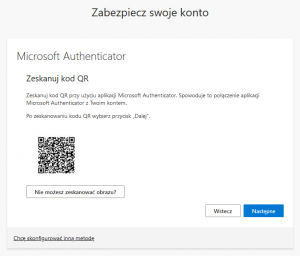
We return to the computer and, in the browser, click the ’Next’ button until the QR code is displayed.
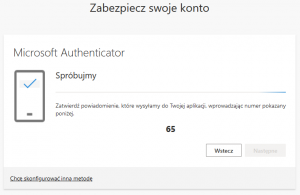
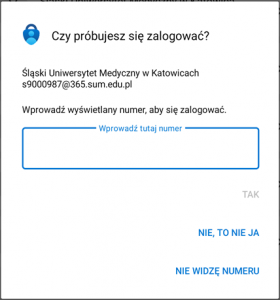
After scanning the QR code, we select 'Next’ in the browser and will be asked to transcribe the two digits displayed in the browser window into the phone app.
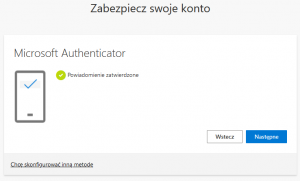
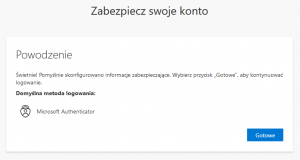
Once the code has been correctly transcribed into the application on the phone, a message will be displayed on the computer screen indicating that the configuration process has been successful. Click on the „Next” button and then „Done”.
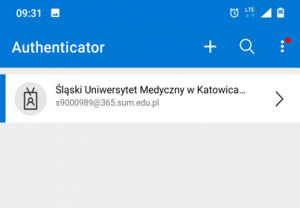
The account will also appear in the 'Microsoft Authenticator’ application.